Understanding Linux File: A Beginner's Guide
In the vast universe of Linux systems, understanding files is like unlocking a secret code to navigate your computer effectively. Here's a simple breakdown:
Everything is a File
In Linux, everything you interact with - whether it's a document, a program, or even hardware like your keyboard - is treated as a file. It's like every item on your computer has a file attached to it, making things easy to manage.
Example: Case Sensitivity
Even if two files have similar names like 'Demo.txt' and 'demo.txt', Linux sees them as separate because it pays attention to capitalization. It's like distinguishing between 'apple' and 'Apple'.
Types of Files
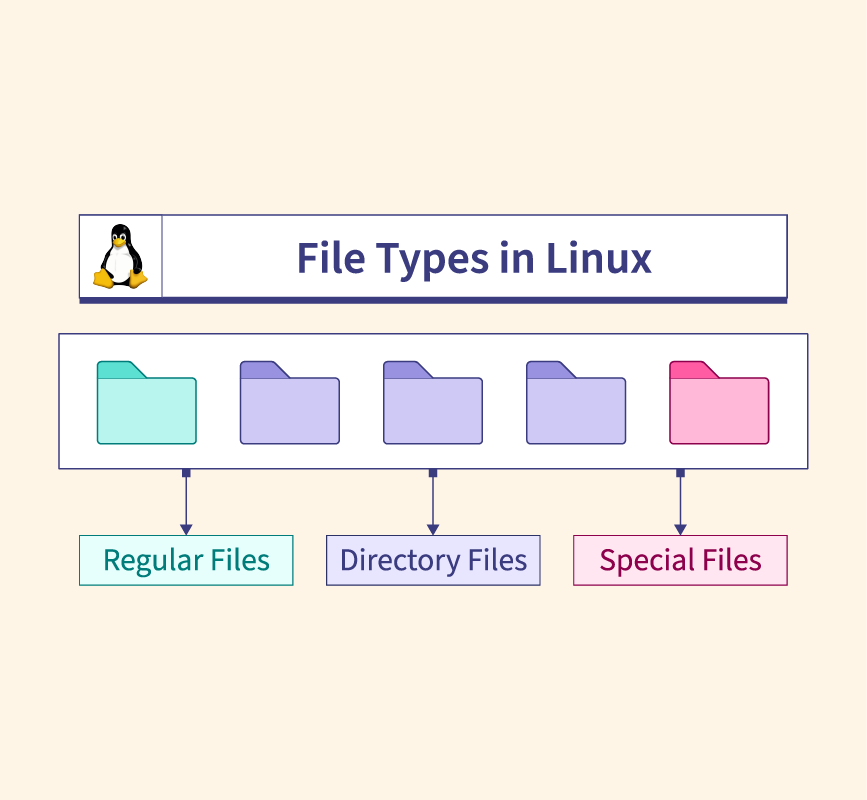
Regular Files (-)📄: These are your everyday files - like text documents or programs. They're what you're probably most familiar with.
Directory Files (d)📁: These are like folders that organize your stuff. They hold lists of other files and folders.
Special Files:
Block Files(b) 💽: Handle data storage, like hard drives.
Example:
/dev/sda1This represents a block device file, which handles data storage, like your server's hard drive. It stores data in fixed-size blocks and manages the storage space efficiently.
Character Device Files(c) 🖨️: Deal with hardware devices like printers.
Example:
/dev/lp0This is a character device file that deals with hardware devices like printers. It allows your server to communicate directly with the printer, sending characters to be printed.
Named Pipe Files (p)⎘: Help different programs talk to each other.
Example:
/tmp/my_pipeThis is a named pipe file, which acts as a conduit for different programs to communicate with each other. For instance, you could have one program writing data into the pipe and another program reading from it, allowing them to exchange information.
Symbolic Link Files(l)➔: Act as shortcuts to other files or folders.
Example:
/var/www/html/websiteThis is a symbolic link file, also known as a symlink, which acts as a shortcut to another file or folder. In this case,
/var/www/html/websitecould be a symbolic link pointing to the actual folder containing your website files.Socket Files (s)🔌: Manage communication between programs, like network connections.
Example:
/var/run/mysql/mysql.sockThis is a socket file, which manages communication between programs, such as network connections. In this example, it could be the socket file used by the MySQL database server to handle client connections.
Handy Commands
Want to boss around with your files? Here are some simple commands to help you:
file: Ask Linux what kind of file something is.
touch: Tell Linux to make a new empty file.
rm: Ask Linux to get rid of a file.
cp: Get Linux to make a copy of a file.
mv: Ask Linux to move or rename a file.
rename: Use this to change the name of a file.
So, whether you're creating, deleting, or just trying to understand what's what on your computer, knowing your way around files in Linux is the key to becoming a digital wizard! 🧙♂️✨


